
Buying a New Computer (How to Avoid Making a Bad Investment)
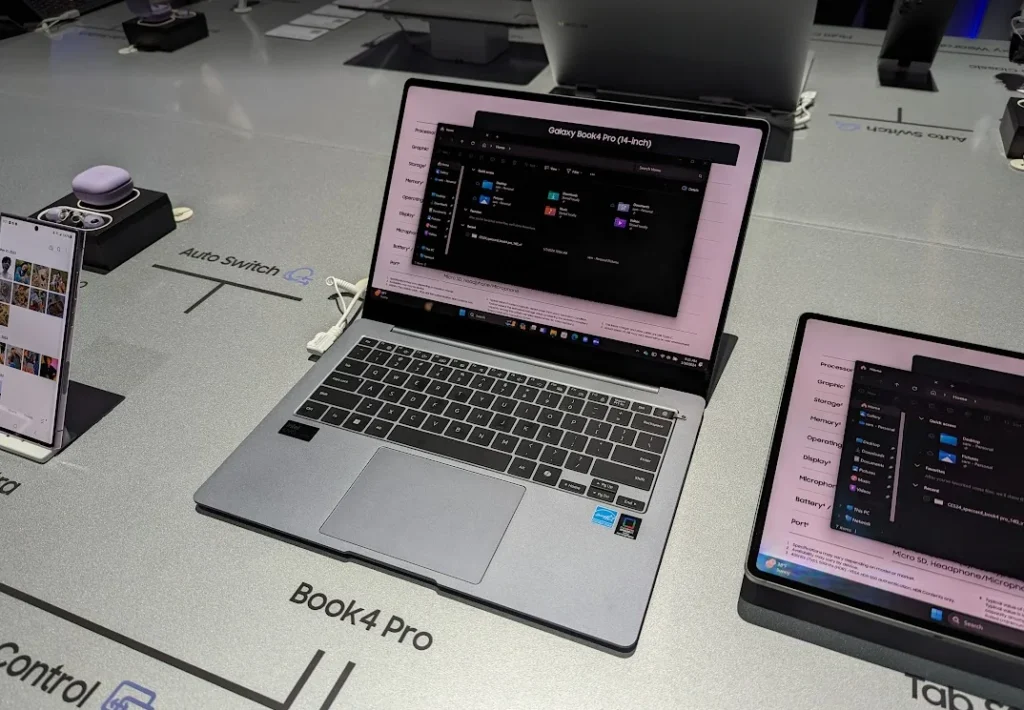
Buying a new computer isn’t something most people do often, which makes it easy to overspend on the wrong features or underspend on critical ones. Whether you’re upgrading from an older machine, buying your first desktop, or replacing a worn-out laptop, the goal is the same—get the best performance and value for your money while ensuring the system will last for years.
The right choice depends on your needs, budget, and how much you value portability versus raw power. A well-matched computer will run the software and games you care about smoothly, leave room for future upgrades, and avoid the common pitfalls that lead to early replacements or frustrating bottlenecks.
In this guide, we’ll break down how to assess your needs, plan your budget, choose the right form factor, understand the specs that actually matter, and avoid the most common mistakes buyers make.
Figure out your needs and wants
Before you start browsing listings or heading to a store, take time to define exactly what you’ll be using your new computer for. This step will shape every decision that follows, from form factor to budget.
For basic productivity—tasks like web browsing, document editing, email, and streaming—you don’t need cutting-edge components. A mid-tier CPU, integrated graphics, 8–16 GB of RAM, and a modest SSD will deliver a smooth experience while keeping costs down.
If your focus is creative work like photo or video editing, 3D modeling, or music production, prioritize a more powerful CPU with higher core counts, a capable GPU for rendering, at least 16 GB of RAM (preferably upgradeable to 32 GB+), and fast NVMe storage for handling large files.
For gaming, the GPU is often the most important factor, but it still needs to be balanced with a strong CPU to avoid bottlenecks. The resolution and refresh rate of your monitor will also influence the graphics power required.
Software developers benefit from more RAM, fast storage for large codebases, and multiple displays for productivity. CPU performance matters here too, especially for compiling large projects or running virtual machines.
If you’re unsure where to start, look up the system requirements for the software or games you use most often—these will give you a baseline for the specs you need today. From there, consider scaling up slightly for future-proofing, especially if you plan to keep the machine for several years.
Set a realistic budget
Your budget will determine not only the performance level you can achieve but also the overall build quality, upgradability, and lifespan of your new system. The key is to align your spending with your needs while leaving room for future upgrades when possible.
At the entry-level (under $500), you can expect basic productivity performance—web browsing, office apps, video streaming, and light multitasking. These systems typically have modest CPUs, integrated graphics, and limited storage, making them unsuitable for modern AAA gaming or heavy creative workloads.
The mid-range ($600–$1,200) is the sweet spot for most users. Here, you’ll find desktops and laptops with solid CPUs, dedicated GPUs (for desktops or higher-end gaming laptops), 16 GB of RAM, and fast SSDs. This tier comfortably handles 1080p or even 1440p gaming, professional office work, light-to-moderate creative tasks, and moderate multitasking without slowdowns.
The high-end ($1,500+) is where you’ll see top-tier gaming performance, workstation-grade CPUs and GPUs, higher RAM capacities (32 GB+), large NVMe SSDs, and premium build quality. These systems are ideal for 4K gaming, heavy video editing, 3D rendering, machine learning, or other resource-intensive workflows.
Be wary of false economy—going too cheap often means replacing the machine sooner, while overspending on features you’ll never use wastes money. A balanced approach is best: match your current workload while allowing a performance cushion for growth.
If you’re shopping on the lower end of the spectrum, check out Best Budget PCs for Everyday Use for curated options that still offer solid performance.
Choosing the right form factor
Form factor determines the physical size, portability, and upgrade potential of your computer. Before diving into individual specs, it’s worth deciding whether you want a full-sized desktop tower, a compact mini PC, an all-in-one, or a portable laptop. Desktops generally offer the most performance for your money and the greatest upgrade flexibility, while laptops prioritize portability at the cost of some raw power and upgrade options. Mini PCs and all-in-ones fit into small spaces but can be harder or impossible to upgrade later.
Laptop or desktop?
Laptops are the go-to choice for mobility—ideal if you need to work or game on the go, move between rooms frequently, or travel. They integrate the display, keyboard, and trackpad, but typically have limited upgrade options (often just RAM and storage). Battery life varies greatly depending on performance level, so keep that in mind if you work unplugged.
Desktops offer more raw performance per dollar, better cooling, and vastly more room for upgrades. They can be tailored to specific needs, from compact small-form-factor builds to massive high-airflow towers. However, they require a separate monitor, keyboard, and mouse, and they aren’t portable.
For a deeper breakdown of which option suits you best, see How to Choose Between Laptop and Desktop.
Prebuilt or Custom?
Once you’ve decided on a desktop, the next choice is whether to buy a prebuilt system or assemble a custom build.
Prebuilt systems are convenient—ready to use out of the box, with warranties covering the entire machine. They’re a good option if you don’t want to spend time sourcing parts or troubleshooting. The downside is that some prebuilt models use proprietary components, limiting upgrades, and may include lower-quality power supplies or motherboards compared to a custom build.
Custom-built PCs offer complete control over every component, allowing you to prioritize quality, performance, and aesthetics. They’re often more cost-effective for higher-end systems and are easier to upgrade over time. The trade-off is the time and knowledge required to assemble them—or the need to pay someone else to do it.
If you’re leaning toward a ready-to-use gaming system, check out Best Prebuilt PCs for Gaming for vetted recommendations.
Mac or PC?
Another fundamental decision when buying a new computer is whether to go with macOS or Windows. Both have strong points, but the right choice depends on your workflow, preferences, and budget.
Macs are known for sleek design, premium build quality, and a tightly integrated hardware–software experience. They excel in creative industries like graphic design, video editing, and music production thanks to optimized software such as Final Cut Pro and Logic Pro. Apple’s M-series chips have also delivered impressive performance-per-watt and long battery life in laptops. However, Macs are generally more expensive, have limited hardware upgrade options, and offer fewer choices in terms of models and configurations.
PCs running Windows provide a wider variety of hardware options at every price point, from budget laptops to extreme gaming rigs. They also offer far greater customization and upgrade flexibility. PCs are a better fit for gamers, engineers, and users who require niche hardware or software. However, the variety in hardware can lead to inconsistencies in build quality and driver support.
For a deeper breakdown of operating system pros and cons, see macOS vs. Windows for Everyday Use.
Understand key specs
Once you’ve narrowed down form factor and platform, the next step is understanding the components that drive performance. Knowing what each part does—and which ones matter most for your needs—will help you avoid overpaying for features you won’t use.
CPU (processor)
The CPU handles the majority of general computing tasks. Core count and clock speed both affect performance, but the ideal balance depends on workload. For most users, a modern quad- to hex-core CPU is plenty for everyday tasks. Gamers and creative professionals often benefit from higher core counts and faster clock speeds. Look at the generation as well—newer architectures typically offer better performance per watt.
GPU (graphics card)
For gaming, 3D rendering, or GPU-accelerated workloads, the graphics card often has the greatest impact on performance. More VRAM can improve performance in high-resolution gaming and complex creative projects. Integrated graphics are fine for basic tasks, but discrete GPUs are essential for serious gaming and professional graphics work. Pair your GPU and CPU carefully to avoid bottlenecks—there’s no sense in buying a high-end GPU if your CPU can’t keep up.
RAM (memory)
RAM determines how many tasks your system can handle at once without slowing down. 8 GB is the minimum for casual use, 16 GB is the sweet spot for most users, and 32 GB or more benefits heavy multitasking, content creation, and workstation workloads. Speed (measured in MHz) and latency (measured in CAS) can also impact performance, though these differences are most noticeable in high-performance use cases.
Storage
Solid-state drives (SSDs) have replaced mechanical hard drives (HDDs) for most modern systems, offering drastically faster boot and load times. NVMe SSDs are faster still, especially when working with large files. HDDs remain useful for bulk storage when speed is less critical. A combination—fast SSD for your OS and apps, large HDD for media—offers the best balance of speed and capacity.
Display
If you’re buying a laptop or all-in-one, display quality is critical. Resolution, panel type (IPS, OLED, or TN), refresh rate, and color accuracy all matter depending on your use case. For gaming, higher refresh rates (120 Hz or more) provide smoother visuals. For creative work, accurate color reproduction is key.
Ports and connectivity
USB-C, Thunderbolt, HDMI, DisplayPort, and Ethernet ports determine what peripherals you can use without adapters. Also check for the latest Wi-Fi and Bluetooth standards for faster and more stable wireless connections.
For a more focused breakdown of the specs worth paying for, see Specs That Actually Matter When Buying.
Avoid common buying mistakes
Many buyers waste money or end up with a machine that underperforms simply because they overlooked key details or fell for marketing hype. Being aware of these pitfalls can save you frustration and unnecessary expenses.
One of the most common mistakes is focusing on a single spec—like CPU clock speed or GPU VRAM—without considering the overall balance of the system. A powerful graphics card paired with an entry-level processor, or vice versa, can create bottlenecks that limit performance.
Another misstep is overestimating future needs and overspending on hardware that will never be used to its full potential. For example, a casual web user doesn’t need a $2,000 workstation, just as a competitive gamer shouldn’t settle for an entry-level laptop with integrated graphics.
Conversely, underestimating requirements can lead to early obsolescence. Skimping on RAM or opting for a small, slow storage drive often results in sluggish performance and the need for premature upgrades.
Don’t overlook build quality and cooling—especially in laptops—since cheap chassis materials, poor ventilation, or noisy fans can make daily use unpleasant and shorten component lifespan.
Finally, ignoring software and peripheral needs can lead to extra costs later. If your workflow requires specific ports, an optical drive, or a particular operating system, make sure these are included from the start.